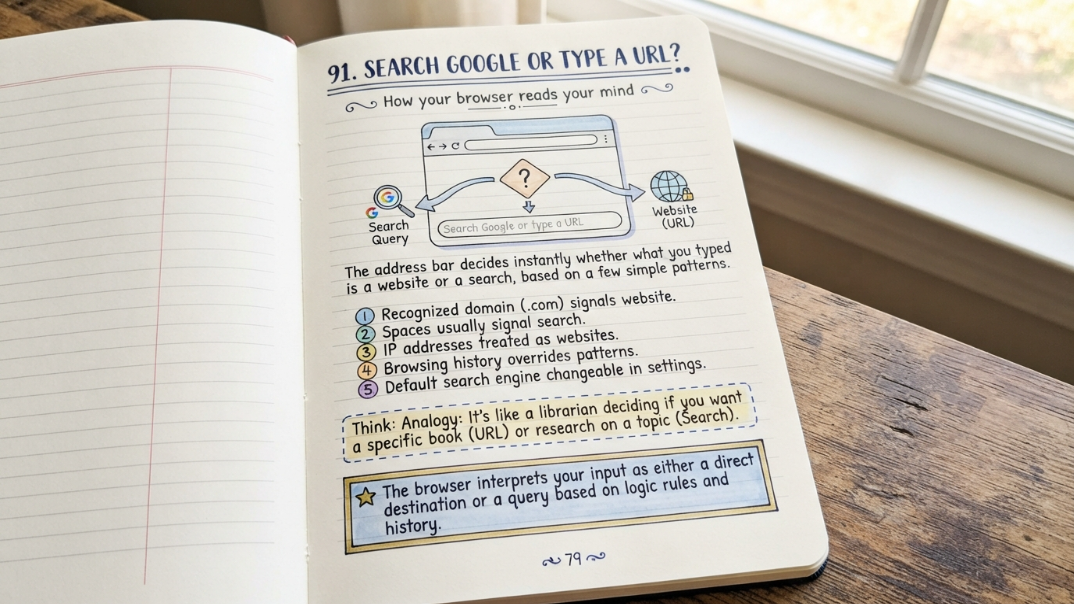
It's one of the most-used pieces of text on any computer, and almost nobody stops to think about how it actually works: the placeholder text "Search Google or type a URL" sitting in the address bar (technically called the omnibox) of Chrome and most other modern browsers. Behind that simple invitation is a small but genuinely interesting piece of engineering — the browser has to guess, instantly and correctly, whether what you're typing is a website address, a search term, or something else entirely, and route it accordingly. This guide breaks down what that box actually does, how the browser makes that decision, and a handful of ways to use it faster once you understand what's happening under the hood.
What the Address Bar Actually Is
The bar at the top of your browser window, right below the tabs, is officially called the omnibox in Chrome-based browsers (the name reflects that it does more than one job) — most people just call it the address bar or search bar. It serves two combined purposes at once: typing a website address takes you directly there, and typing anything else runs a search using your browser's default search engine, most commonly Google. That dual function is exactly what the placeholder text "Search Google or type a URL" is telling you, even though most people never consciously register it.
Why It Says 'Search Google or Type a URL'
Older browsers separated these two functions into two different boxes — a dedicated search box and a separate address bar for URLs — which meant typing in the wrong box did nothing useful. Modern browsers merged the two into a single, smarter box specifically because most users don't think in terms of "is this a URL or a search," they just type what they're thinking and expect the browser to figure it out. The placeholder text is a small usability cue confirming that either input type will work, so users don't hesitate wondering which box they're supposed to use.
How the Browser Decides: Search vs Website
The browser runs a quick set of pattern checks on whatever you type, in roughly the order below, to decide whether to treat it as a web address or send it to your search engine.
- Does it start with a recognized protocol like http:// or https://? → Treated as a URL
- Does it contain a recognizable domain extension (.com, .org, .in, .co, etc.) with no spaces? → Treated as a URL
- Does it match the pattern of an IP address (like 192.168.1.1)? → Treated as a URL
- Does it contain spaces, or lack any domain-like structure? → Treated as a search query
- Is it a single word with no dot and no recognized domain? → Usually treated as a search query, unless it matches browsing history exactly
The Omnibox Behind the Scenes
As you type, the browser isn't just waiting for you to finish — it's actively running autocomplete suggestions pulled from several sources simultaneously: your browsing history, your bookmarks, popular search suggestions from your default search engine, and sometimes direct answers for certain queries (like a calculator result or a unit conversion) computed locally without ever leaving the address bar. This is why typing the first few letters of a site you've visited before often surfaces the full address before you finish typing it, while a brand-new query you've never searched tends to show live search suggestions instead.
Common Ambiguous Cases and How Browsers Handle Them
Some inputs are genuinely ambiguous, and how the browser resolves them isn't always obvious.
| What You Type | Likely Treated As | Why |
|---|---|---|
| nike | Search query | No dot or domain pattern; ambiguous whether it's a brand or a search term |
| nike.com | Website (URL) | Recognized domain extension with no spaces |
| localhost | Website (URL) | Recognized as a special local address by the browser |
| is the sky blue | Search query | Contains spaces, no domain structure |
| 192.168.0.1 | Website (URL) | Matches IP address pattern |
| one plus one | Search query (often with a calculator answer) | Matched against a built-in calculation pattern |
Changing Your Default Search Engine
Whatever you type that gets classified as a search, rather than a URL, is sent to whichever search engine is set as your browser's default — Google by default in Chrome, though this can be changed to Bing, DuckDuckGo, or another provider in the browser's settings menu, typically under a "Search engine" section. Once changed, the address bar will still say "Search Google or type a URL" in some browser versions until the interface refreshes, or it may update to reflect your new default depending on the browser and version.
Address Bar Shortcuts You're Probably Not Using
Beyond the basic search-or-URL function, the address bar in most modern browsers supports a handful of shortcuts that save real time once they become habit.
- Type a site's keyword (like 'yt' if configured) followed by Tab, then search directly within that site
- Press Ctrl+L (or Cmd+L on Mac) to jump straight to the address bar from anywhere in the browser
- Type a math expression directly (like '15% of 200') for an instant calculated answer
- Start typing a previously visited URL and press the Delete key to remove it from suggestions if it's outdated
- Use Ctrl+Enter to auto-complete 'www.' and '.com' around whatever you've typed
Privacy and Security Considerations
Because the address bar sends anything not recognized as a URL to a search engine, it's worth being aware that partial typos of sensitive information (like beginning to type a password or personal note without realizing autocomplete is active) can occasionally trigger a search or a suggestion based on browsing history. Most browsers also flag suspicious or known-malicious URLs directly in the address bar with a warning before the page loads, and checking for the padlock/https indicator next to a typed or visited address remains a basic but effective habit for confirming a site's connection is encrypted before entering any sensitive information.
Address Bar Across Different Browsers
While the core search-or-URL logic is broadly similar across major browsers, the placeholder text, autocomplete behavior, and shortcut sources differ slightly.
| Browser | Address Bar Name | Default Search Engine |
|---|---|---|
| Google Chrome | Omnibox | |
| Mozilla Firefox | Address Bar / Awesome Bar | Google (configurable) |
| Microsoft Edge | Address Bar | Bing |
| Safari | Smart Search Field | Google (configurable) |
FAQs
What does 'Search Google or type a URL' actually mean?
It's the placeholder text in your browser's address bar (the omnibox) indicating that the same box can be used either to type a full web address to go directly to a site, or to type a search term that gets sent to your default search engine.
How does the browser know if I typed a URL or a search term?
It checks for patterns like recognized domain extensions (.com, .org), the presence of a protocol (http/https), IP address formatting, and whether the text contains spaces, using those signals to decide whether to load a website or run a search.
Can I change what search engine the address bar uses?
Yes. Most browsers let you change the default search engine in the settings menu, typically under a search engine or search settings section, which changes where non-URL queries typed in the address bar get sent.
Why does typing one word sometimes go to a website instead of a search?
If the single word matches a site in your browsing history or bookmarks closely enough, the browser's autocomplete may prioritize navigating there directly instead of running a search, even without a recognizable domain extension.
Is it safe to type sensitive information in the address bar?
It's best avoided. Since unrecognized text is typically treated as a search query and may be logged in your search or browsing history, typing sensitive personal information directly into the address bar isn't a private or secure practice.
What is the address bar called in different browsers?
It's called the Omnibox in Chrome, the Address Bar or Awesome Bar in Firefox, the Address Bar in Microsoft Edge, and the Smart Search Field in Safari, though all serve essentially the same combined search-and-navigation function.